> ## Documentation Index
> Fetch the complete documentation index at: https://docs.brightdata.com/llms.txt
> Use this file to discover all available pages before exploring further.
# Agent Builder MCP server integration
> Connect OpenAI Agent Builder to the Bright Data MCP server (60+ tools) to build AI agents with real-time web search, scraping and structured data access.
You might be eligible for our Startup Program. Get fully funded access to the infrastructure you're reading about right now (up to \$20K value).
**Requirements:**
* [Bright Data account](https://brightdata.com/?hs_signup=1\&utm_source=docs)
* OpenAI Account with a [verified organization](https://help.openai.com/en/articles/10910291-api-organization-verification)
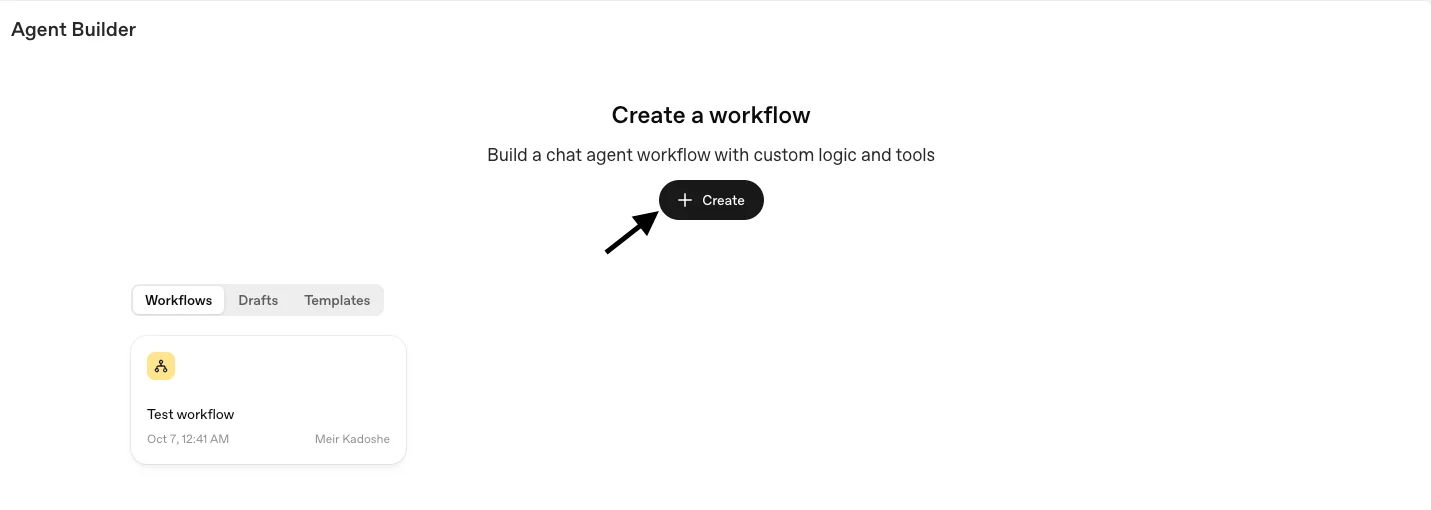
Go to [Agent Builder](https://platform.openai.com/agent-builder) and create a new flow
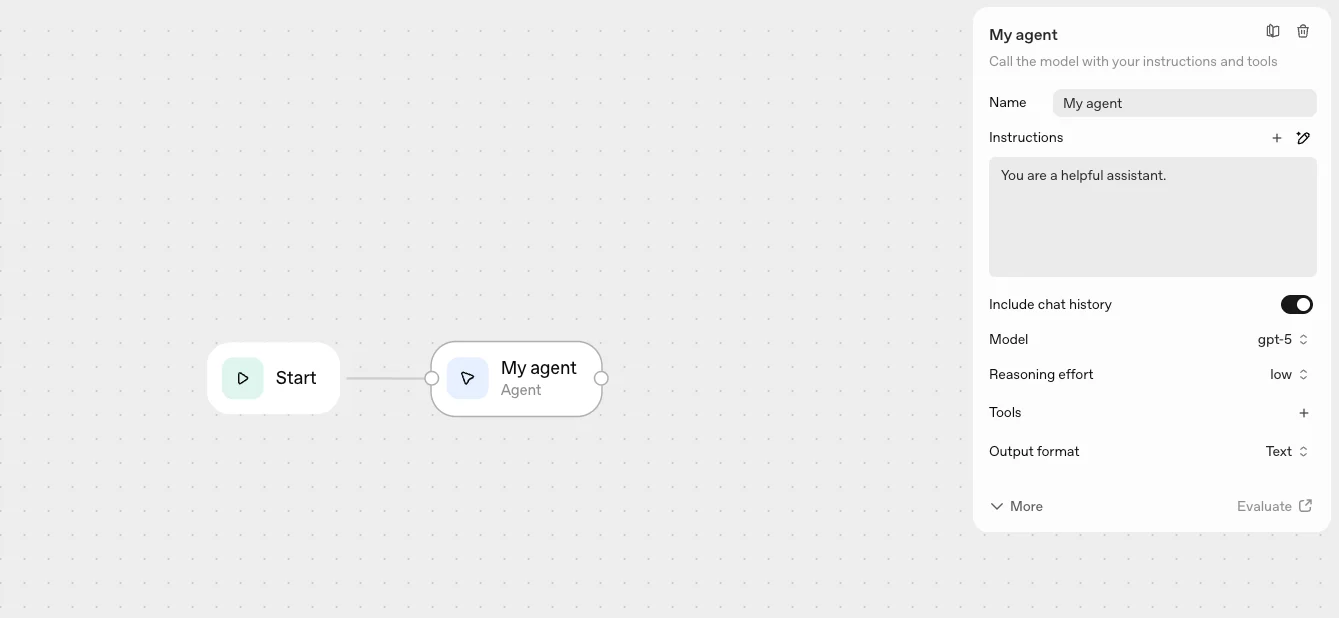 After clicking the agent node, the agent configuration panel will appear on the left side of the screen.
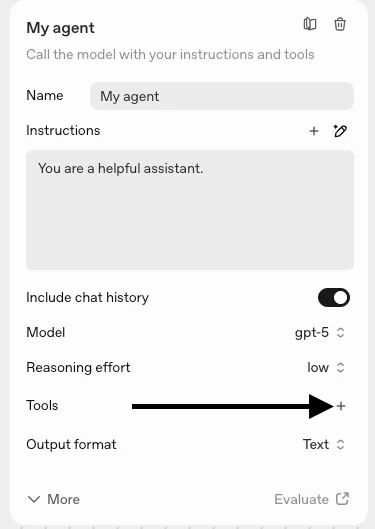 Copy and paste the following URL into the URL section:
```http theme={null}
https://mcp.brightdata.com/mcp?token=YOUR_API_KEY
```
Replace `YOUR_API_KEY` with your actual Bright Data API key.
You can copy this URL with a pre-filled API key from your [control panel](https://brightdata.com/cp/mcp)
Then click the Connect button.
Copy and paste the following URL into the URL section:
```http theme={null}
https://mcp.brightdata.com/mcp?token=YOUR_API_KEY
```
Replace `YOUR_API_KEY` with your actual Bright Data API key.
You can copy this URL with a pre-filled API key from your [control panel](https://brightdata.com/cp/mcp)
Then click the Connect button.
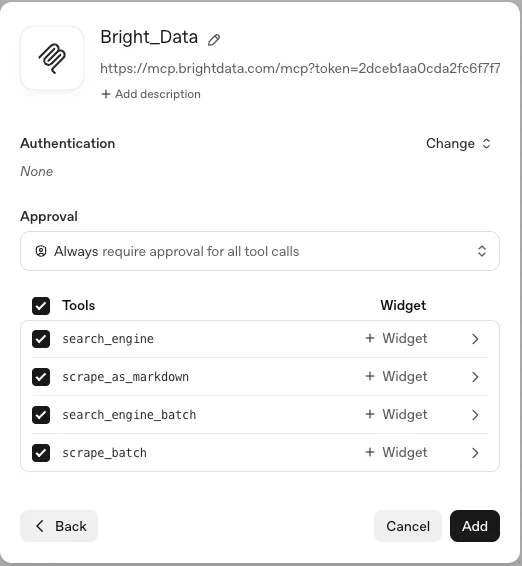
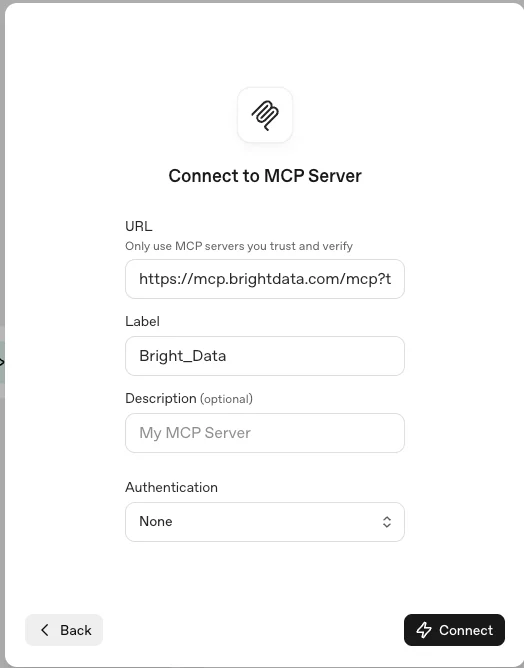 Here you can choose the relevant tools you want to expose to the agent, or add all of them by clicking the Add button.
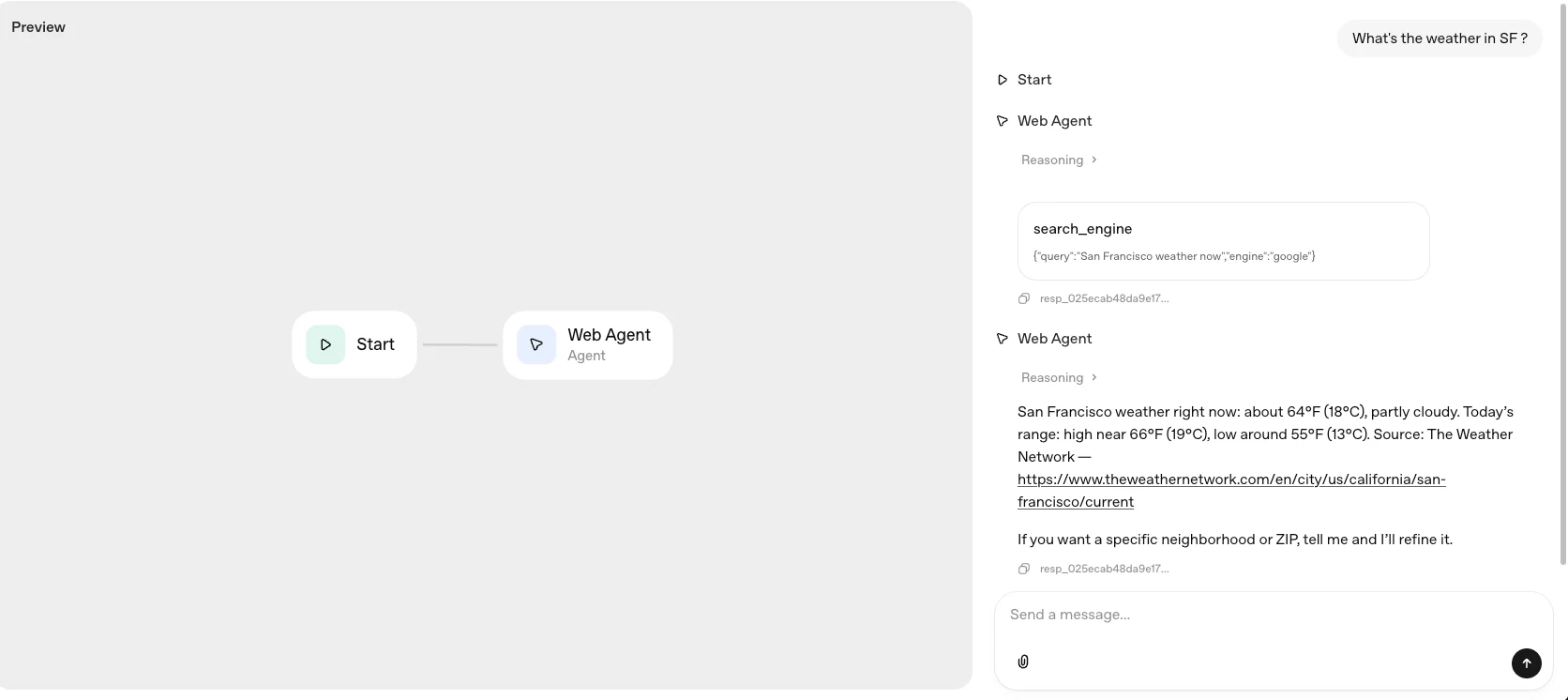
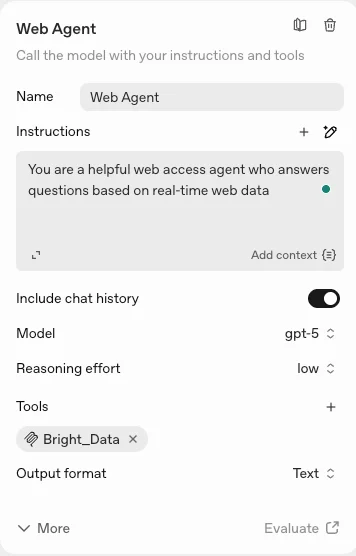
 Give your agent a name, provide an instruction set, choose the reasoning effort level, and click the Preview button to test it.
 Ask your agent any question that requires real-time web data and get an instant answer.