

Prerequisites
- A scraper saved to production in the Bright Data Scraper Studio
- An API key if you want to initiate runs or download results by API (create one)
- Destination credentials if you want to deliver results to webhook, cloud storage, SFTP or email
How do I save a scraper to production?
While you edit code in the Bright Data Scraper Studio IDE, the system auto-saves your work as a development draft. To make the scraper runnable outside the IDE, click Save to Production in the top-right corner of the IDE. Production scrapers appear under My Scrapers with an Active or Ready status. Unsaved scrapers remain in Draft status and cannot be initiated outside the IDE.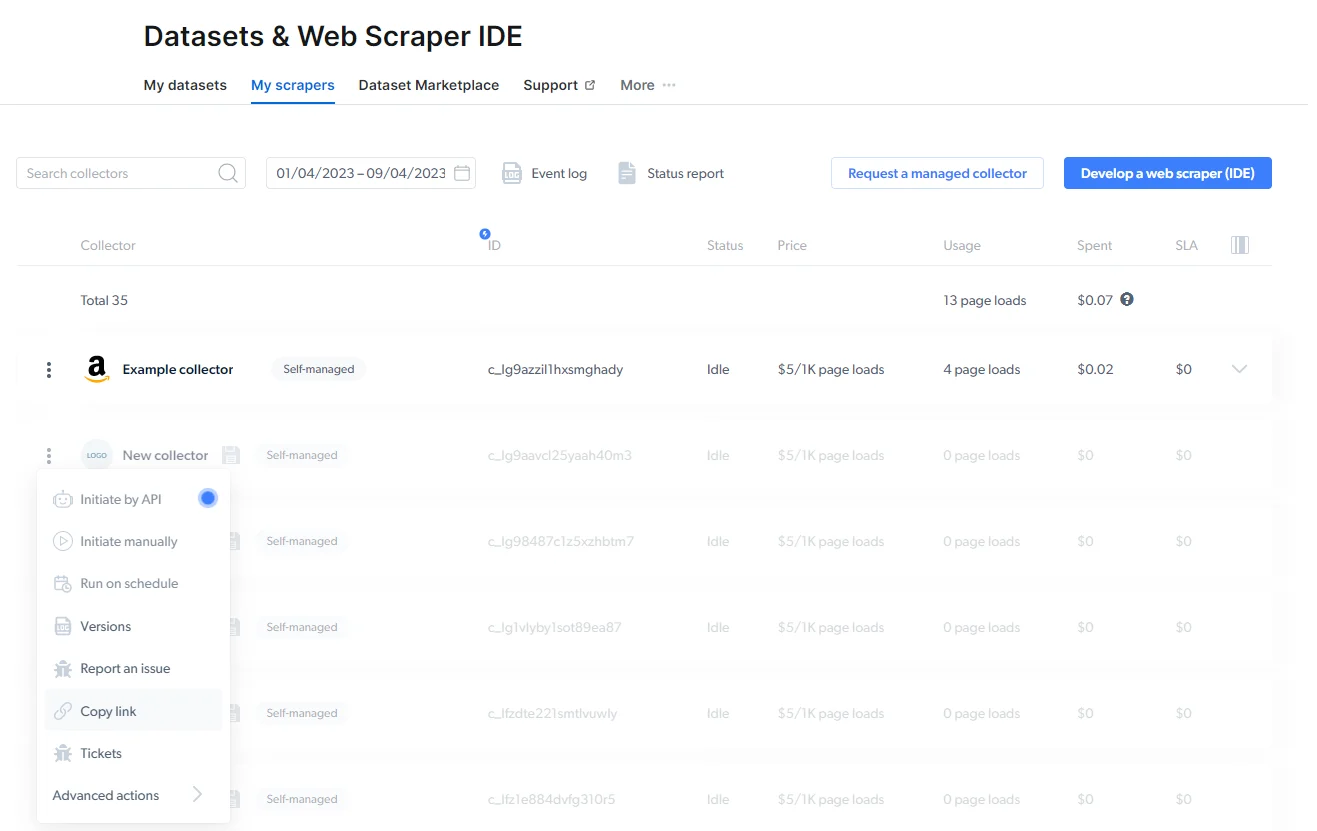
How do I trigger a scraper run?
Bright Data Scraper Studio supports three ways to start a collection run.- Initiate by API
- Initiate manually
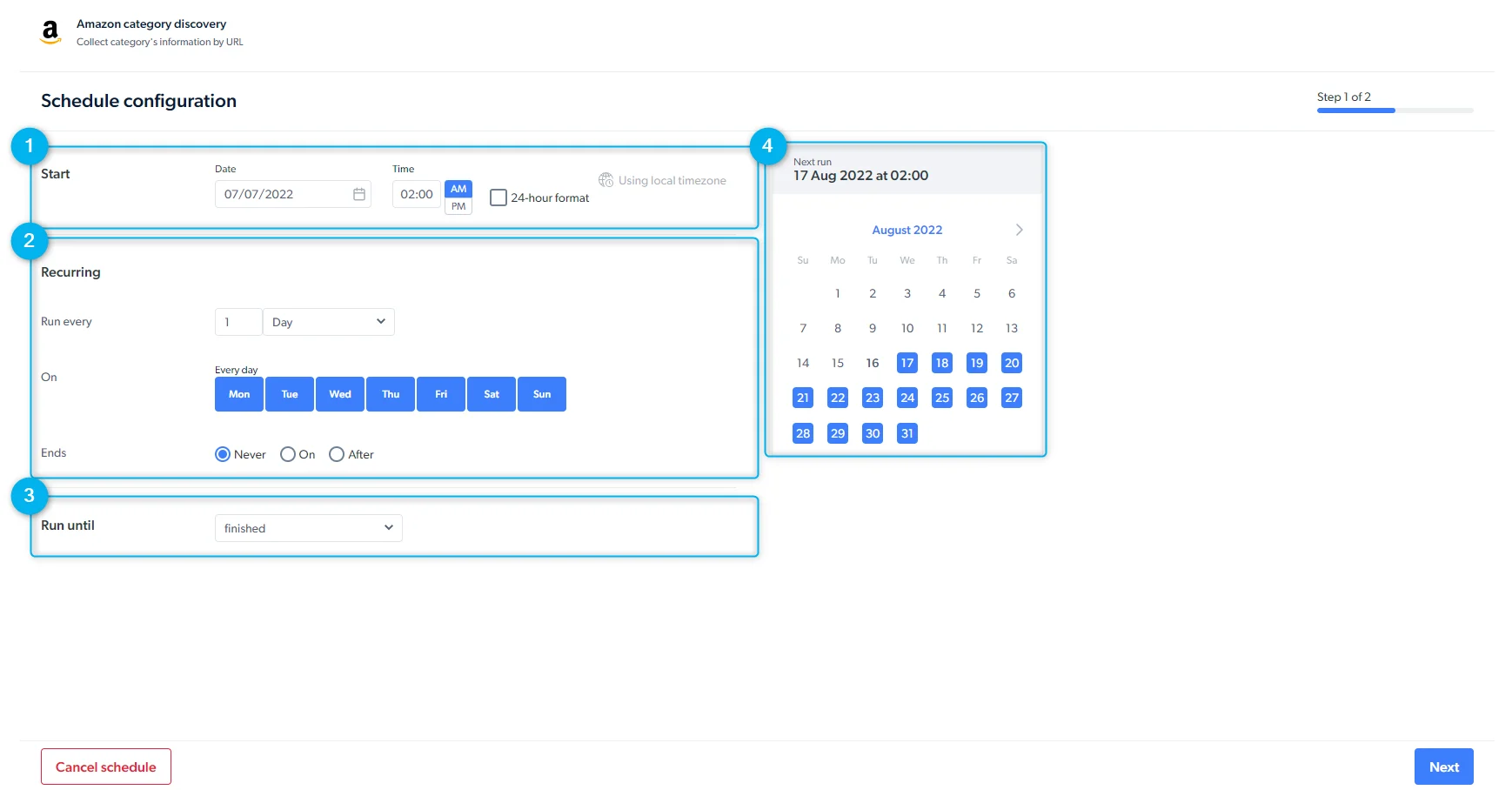
- Schedule a scraper
Use Initiate by API to start a collection from your application or automation workflow. Before using the API, create an API key. Go to Dashboard > Account settings > API key.For a full API walkthrough, see Getting started with the API.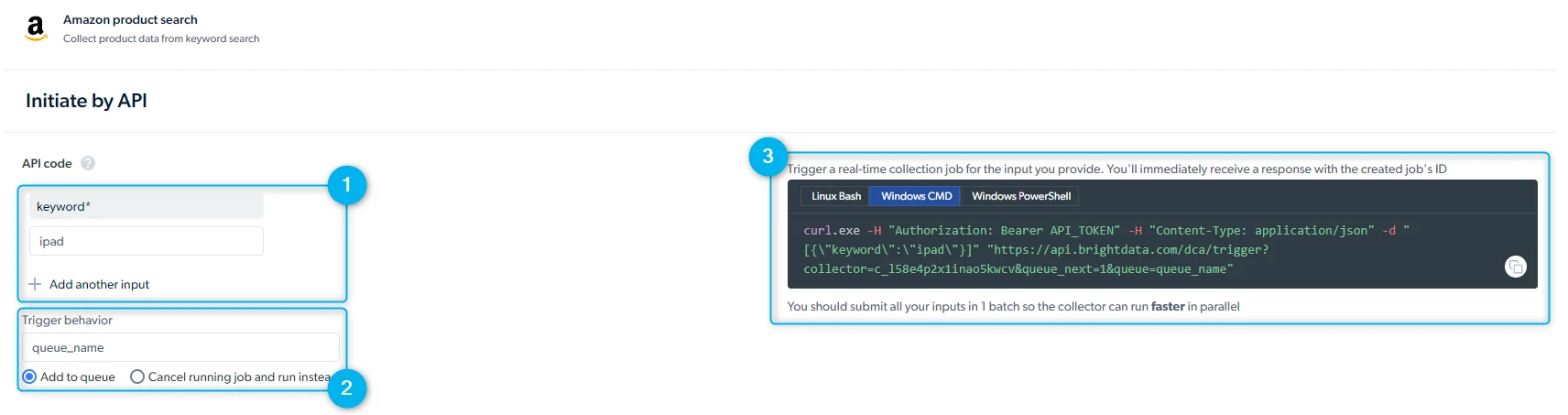
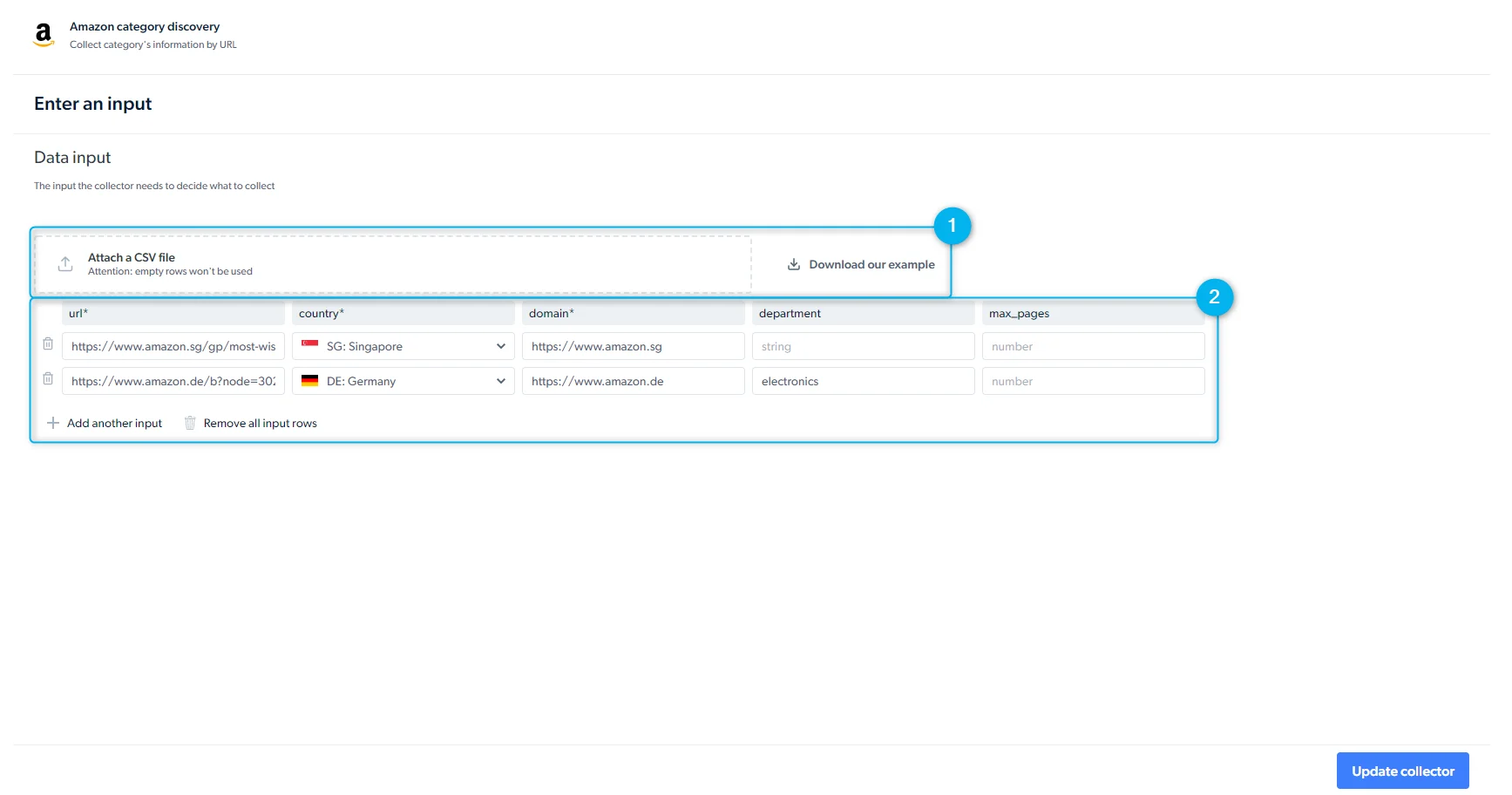
- Inputs: provide input values manually or through the API request body
- Trigger behavior: Run several requests in parallel by assigning them a queue name or queue additional jobs to run after earlier ones finish
- API request preview: A ready-to-run request example, including the endpoint and request body. Select the Linux Bash viewer for
curl. The API response includes acollection_id. Use this ID to fetch results later when delivery is configured as API download.
When delivery is set to API download, you must call the “Receive data” API endpoint to retrieve results. When delivery is configured as webhook or cloud storage, Bright Data sends the results to the configured destination automatically.
What are the rate limits and concurrency limits?
Bright Data Scraper Studio enforces concurrency limits per scraper, based on whether the request is batch or real-time.
When the batch limit is exceeded, Bright Data returns this error:
Maximum limit of 100 jobs per scraper has been exceeded. Please reduce the number of parallel jobs.
Batch vs real-time collection
Scraper Studio supports batch and real-time collection. Each method is optimized for a different use case.
Use batch collection for larger jobs and scheduled datasets. Use real-time collection for low-latency workflows that need a response for one input.
How do I configure delivery?
Open My Scrapers, click a scraper row, and choose Delivery preferences to set where and how Bright Data Scraper Studio delivers results.When should I receive the data?
When should I receive the data?
- On job Completion (batch): Delivers results after the full collection run finishes. Use when you are collecting multiple inputs and can wait until the run completes.
- Split delivery to small batches: Delivers partial result batches as they become available. Enter the number of data lines each batch should contain. Entering
10000means each delivered file or payload contains up to 10,000 result lines.
- Split delivery to small batches: Delivers partial result batches as they become available. Enter the number of data lines each batch should contain. Entering
- Real-time (single request): Returns data for a single request in real time.
- Skip retries: do not retry on error (speeds up collection at the cost of completeness)
Which file formats are supported?
Which file formats are supported?
- JSON
- NDJSON
- CSV
- XLSX
Which delivery destinations are supported?
Which delivery destinations are supported?
- API download (pull via REST API)
- Webhook (push via HTTPS POST)
- Cloud storage: Amazon S3, Google Cloud Storage, Azure Blob Storage, Alibaba Cloud OSS
- SFTP / FTP
Media files cannot be delivered via Email or API download. Use cloud storage, SFTP, or webhook when collecting images, videos, or other binary content.
How can I control what goes in the batch output?
How can I control what goes in the batch output?
Use Data preferences to decide which records are included in delivery.
- Results and errors in separate files
- Results and errors in one combined file
- Only successful results
- Only errors
Which notifications can I enable?
Which notifications can I enable?
Use Notifications to receive updates about completed runs, low success rates, or delivery problems.Notifications can be configured separately for production and development.
- Completion notifications (Email, Webhook, None) - use When finished, notify me by to choose whether Scraper Studio sends a notification after a run completes.
- Low success rate notifications - use Notify me about low success rates to receive alerts when scraper success rates drop.
- Delivery problem notifications - use Notify me about problems with delivery to receive alerts when Scraper Studio cannot deliver results to the configured destination.
What is Development delivery settings?
What is Development delivery settings?
The Development setting controls whether development runs use the same delivery settings as production. Use separate development settings when testing a new destination, webhook, or file format before applying it to production runs.
Related
Scraper Studio specifications
Infrastructure limits, billing, and data retention
WARC snapshots
Archive raw HTTP responses alongside collected data