Start free, no credit card requiredYour free tier includes 5,000 credits every month for the Web Unlocker API. Create your Web Unlocker API and start sending requests immediately, no payment method needed. Learn more about the free tier.
Once completed, your API will be ready to send unlock requests and return clean HTML or JSON responses.
How to set up step by step
1
Log in to your Bright Data account using your credentials. If you don’t have an account yet, you’ll be prompted to create one before proceeding.
2
Navigate to the Create an API page
From the Bright Data Control Panel:1. Open the left-hand navigation menu from the dashboard.
2. Select Web Access APIs from the menu.
3. Click Create API to start creating a new API.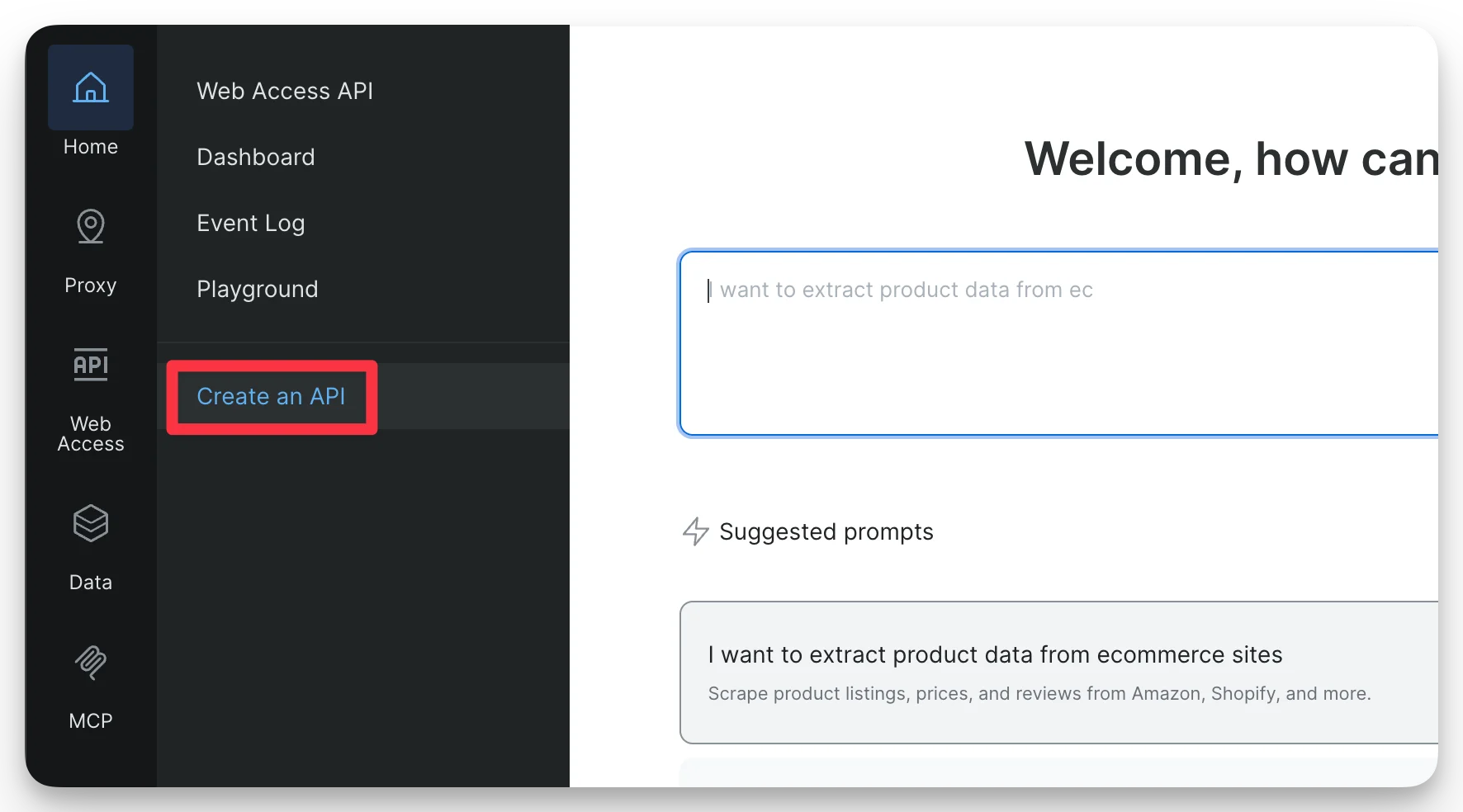
2. Select Web Access APIs from the menu.
3. Click Create API to start creating a new API.
3
Choose Web Unlocker API
In the API selection screen, choose Web Unlocker API. This enables automatic proxy management and unblocking logic for your requests.Click Continue to proceed.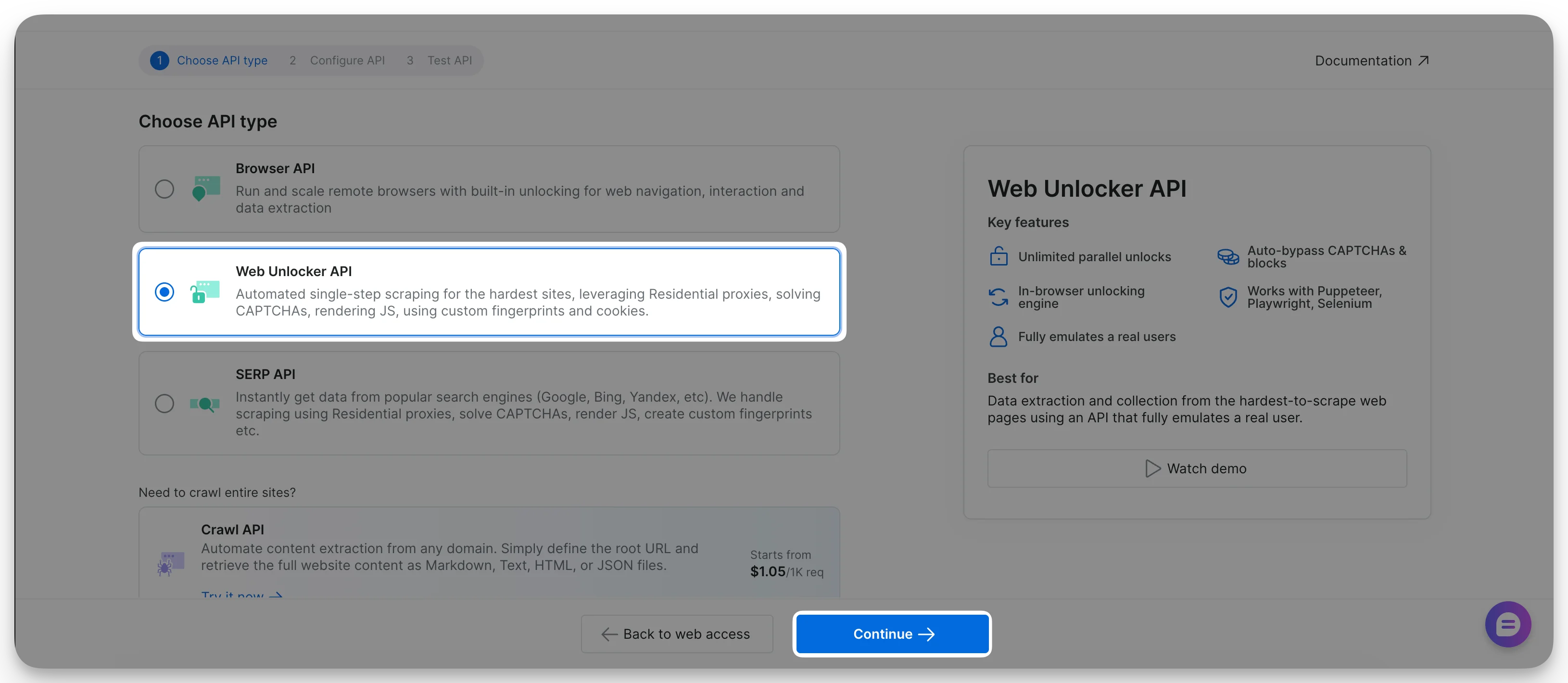
4
Assign a name to your Web Unlocker API
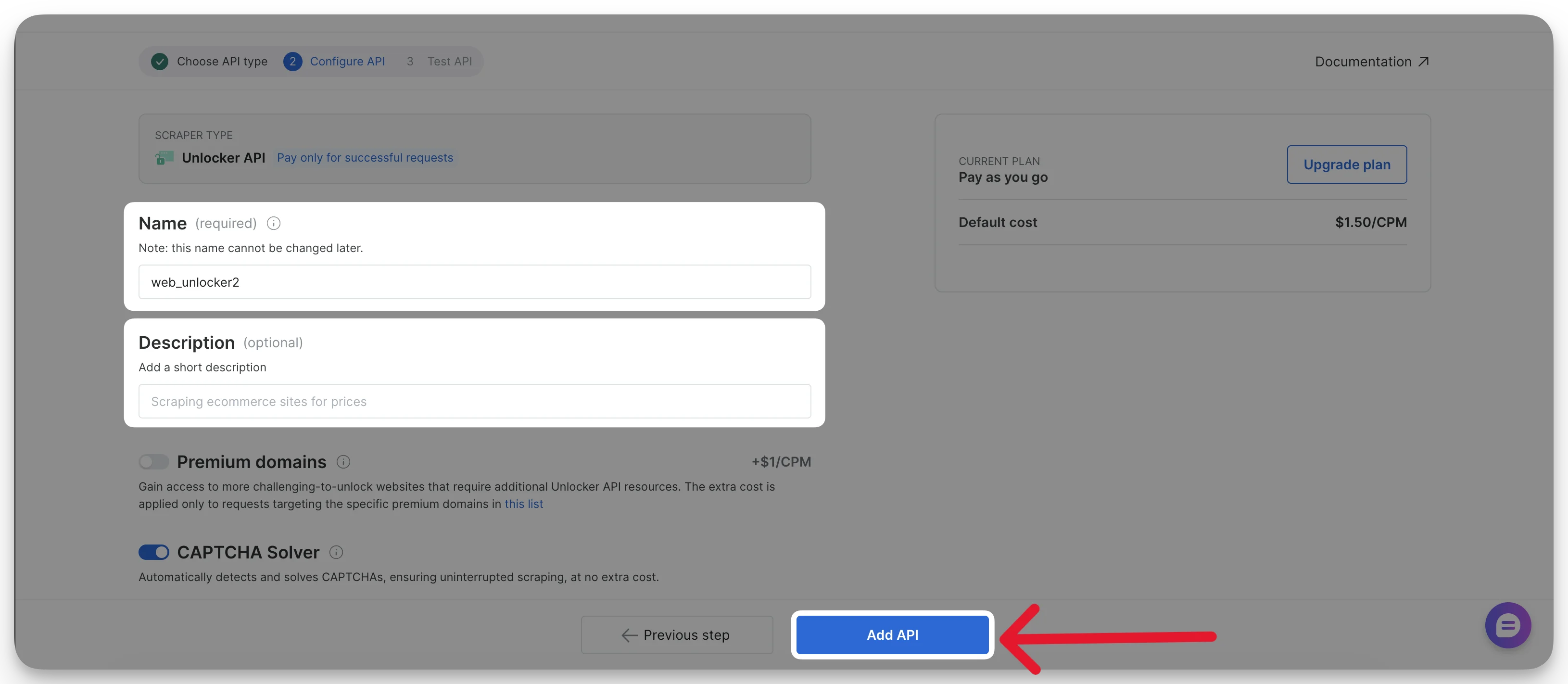
Enter a clear and descriptive name for your Web Unlocker API. This helps you identify the API later, especially if you manage multiple zones.You may also add an optional description for internal reference.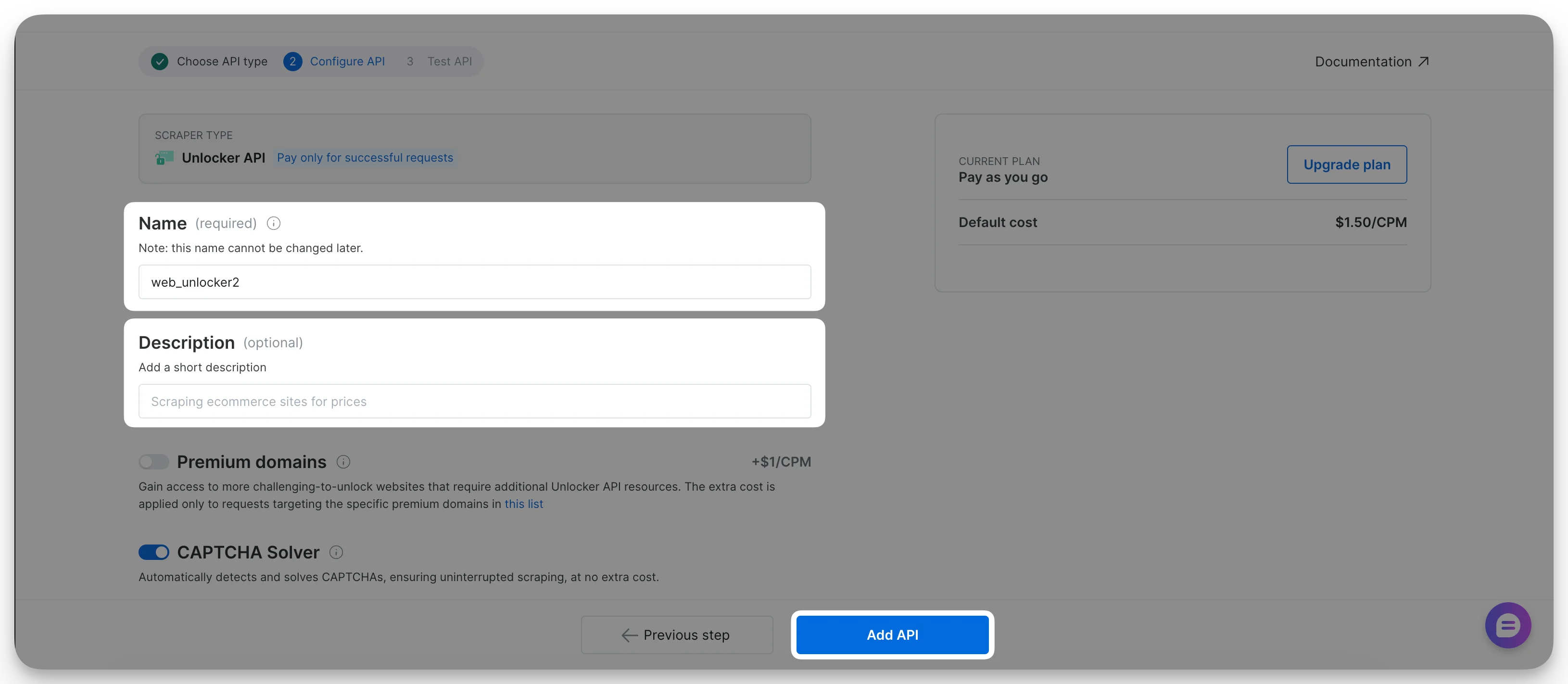
5
Add payment method (free trial users only)
If you signed up with a personal email (e.g., Gmail, GitHub) and have not yet added a payment method, the primary button will read Add payment method instead of Add API.Click the button to open the payment verification form and complete the process. You will not be charged, this is for identity verification only.
Already have a payment method on file? This step is skipped automatically. For full details, see Payment Verification.
6
Finalize API creation
Review your configuration and click Add API. If you were redirected to add a payment method, your zone is created automatically once verification completes. Your Web Unlocker API zone is now created and immediately available for use.